Lab Mode
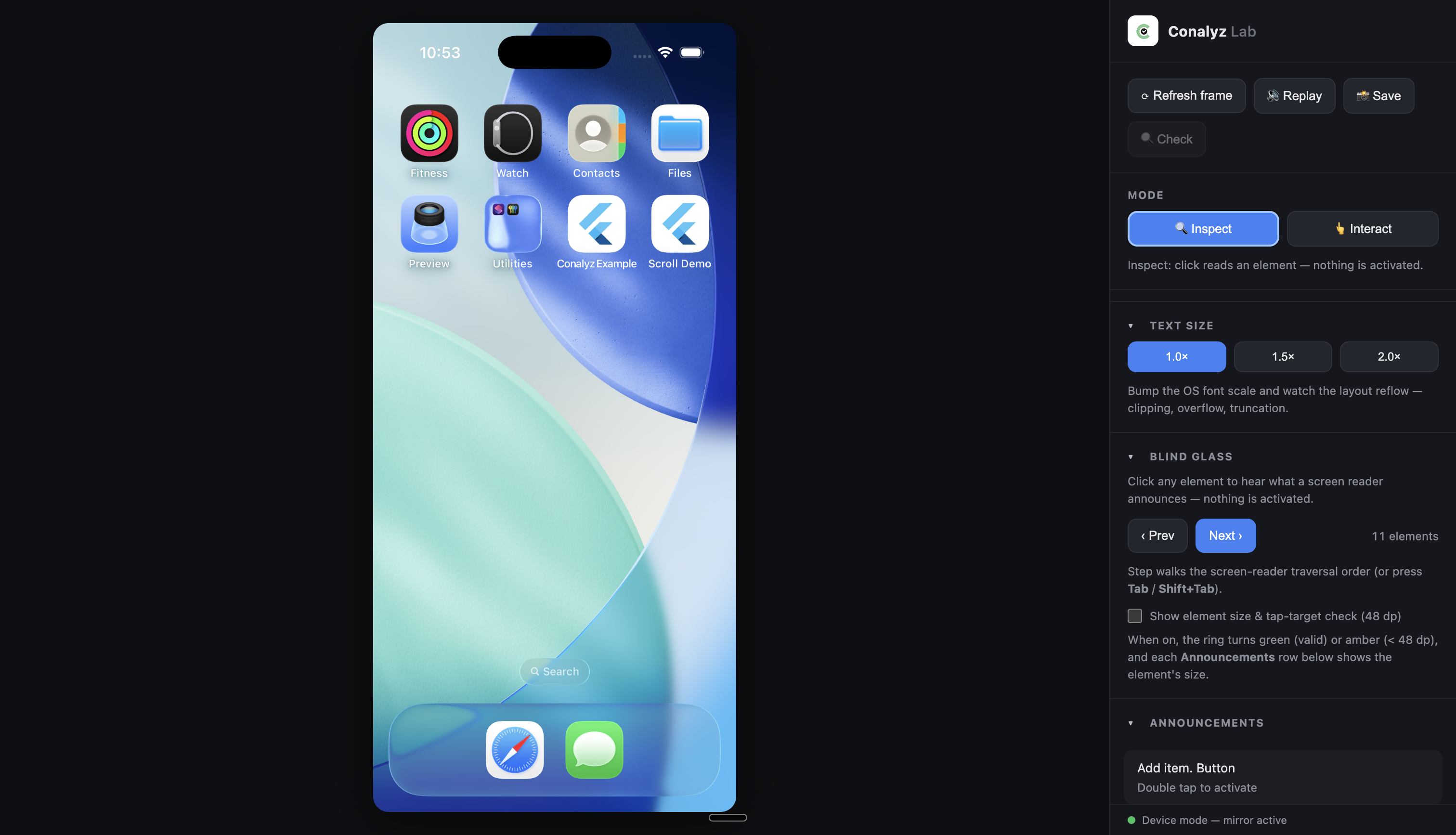
Lab mode opens a live, interactive window in your browser where you experience your app the way users with disabilities do — see it through colour-blind eyes, blur it to low-vision acuity, scale the text, and hear what a screen reader announces. Where the report tells you what is wrong, the lab lets you feel why it matters.
Lab mode requires a Conalyz token. Join the beta to get one.
Running
conalyz lab
The lab starts a local server and opens your default browser — that tab is the lab window. Press Ctrl+C in the terminal to end the session.
Lab mode works two ways, and Conalyz picks automatically based on where you run it:
- App mode — run it from a Flutter project (or pass
--dir). Conalyz starts your app and connects to it, exactly like the other runtime modes. - Device mode — run it anywhere that isn't a Flutter project. Conalyz lists the connected Android devices/emulators and booted iOS simulators and lets you pick one, then mirrors any app on that device — no source code or debug build required.
# App mode — from your Flutter project
conalyz lab

# Device mode — from any other directory
cd ~
conalyz lab
  Connected devices:

  1.  Pixel 7 Pro  (Android)
  2.  iPhone 15  (iOS simulator)

  Select device (1–2):
The window
The window has two parts: a live mirror of the device on the left, and a control panel on the right. You drive and inspect the app entirely inside this one window.
Colour vision
Switch the mirror between Normal, Deuteranopia, Protanopia, and Tritanopia to see whether colour-only cues (a red error border, a green success state) survive for colour-blind users.
Blur — low vision
Blur the mirror — Sharp, Mild, Moderate, Severe — to simulate low visual acuity (cataracts, aging eyes). If the primary action can't be found when blurred, the layout is relying too much on fine detail. Combines with the colour filter.
Text size
Bump the device's font scale to 1.0×, 1.5×, or 2.0× and watch the layout reflow. Clipped, overlapping, or disappearing content shows up immediately. The device's original text size is restored when you end the session.
Blind glass
Hear what a screen reader announces for each element — read aloud on your computer, with the text shown in the Announcements panel. Two ways to drive it, both read-only (nothing is activated):
- Point — click any element on the mirror to hear its announcement. Best for spot-checking labels.
- Step — use Next / Prev (or Tab) to walk through the screen in focus-traversal order, with a highlight ring and a position counter ("3 of 12"). This is how a switch-access, keyboard, or screen-reader user actually moves through a screen.
Turn on the optional size & tap-target check to colour the highlight ring by the 48 dp minimum (green = large enough, amber = too small) and show each element's size in the panel.
Blind glass keeps working even if your Flutter app crashes or is closed mid-session in app mode — it automatically falls back to the operating system's accessibility tree, the same source device mode uses.
Blind glass speaks a best-effort reconstruction of what a screen reader would say — it is not a recording from TalkBack or VoiceOver. Exact wording can vary by OS version, device, and platform (Android and iOS phrase some announcements differently). Use it to catch likely problems — missing labels, confusing reading order, unclear hints — then confirm with a real screen reader on a real device before relying on the exact words.
Inspect and Interact
A toggle decides what a click does:
- Inspect (default) — clicking reads an element; nothing is activated.
- Interact — clicking fires a real tap to navigate. Scroll, swipe, and back buttons drive the device, and tapping a text field reveals a box to type into. On iOS, pressing Back when already at the root screen navigates to the home screen (Springboard), mirroring the Android behaviour.
Check
The 🔍 Check button runs Conalyz's full set of accessibility checks on the current screen and lists every violation in a panel, colour-coded by severity. Click a violation to highlight it on the mirror.
Save a screenshot
The 📸 Save button writes the current frame to a PNG in your working directory — with the active colour filter and blur baked in, so you can share exactly what you're seeing.
What works in each mode
| Tool | App mode | Device mode |
|---|---|---|
| Colour vision (CVD) | ✓ | ✓ |
| Blur — low vision | ✓ | ✓ |
| Text size | ✓ | ✓ |
| Blind glass (Point / Step) | ✓ | ✓ |
| Size & tap-target check | ✓ | ✓ |
| Inspect / Interact | ✓ | ✓ |
| Save screenshot | ✓ | ✓ |
| Violations Check | ✓ | Flutter debug build only |
In device mode, Blind glass reads from the operating system's accessibility tree, so it works on any app. The violations Check needs a Flutter debug build and is available in app mode only.
Prerequisites
Lab mode uses the same device tooling as the other runtime modes — see Prerequisites:
- Android —
adb - iOS — Xcode Command Line Tools and
idb
App mode also needs the Semantics tree enabled in your app.
Nothing is saved
The lab is an experience, not a report. The announcement panel is a live log that is never exported, and the only thing written to disk is a screenshot you take yourself. To produce a shareable report, use manual or automated mode.